You can fully test the app for 30 days from the first launch, or for a maximum of 10 matches. At the end of the match, the activity can only be discarded. Default data fields only.
Designed specifically for older Garmin devices. Provides a stable and optimized experience for legacy hardware.
1. Basic Orientation and Screens
The SimpleRef app is designed for maximum clarity and speed during match management. Switch between screens using the Up/Down buttons or by swiping the touchscreen.
Main Screen (Timer)
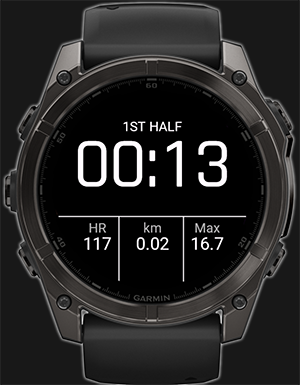
Contains match and fitness information:
Match Status: Information at the top (e.g., 1ST HALF, BREAK).
Main Timer: Large digits in the center of the display. It runs normally during play and turns red during breaks or suspensions.
Data Fields: Three small fields in the bottom third. You can set these to display data according to your preference (Heart Rate, Distance, Time, etc.).
Personal Penalties Log
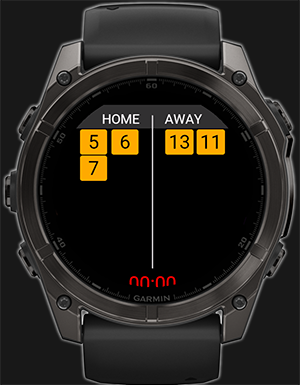
The second screen serves as a digital notebook and display unit for cards.
The home team's list is on the left, the away team's on the right.
Yellow cards have a yellow background, red cards have a red. If a player receives a second yellow, the field automatically turns red.
A smaller running timer is always visible at the bottom so you don't lose track of time while staying on this page.
(Note: The slightly overlapping time on the card screen is a display error in the simulator; in reality, the time is perfectly visible overall.)
Goal Scorers Log
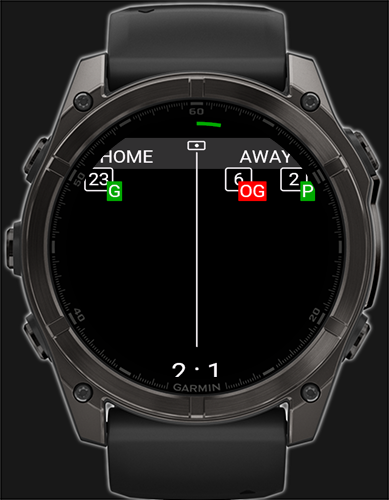
The third screen displays the goals scored
Tap and hold on the left or right side of the screen to select the shooter's number
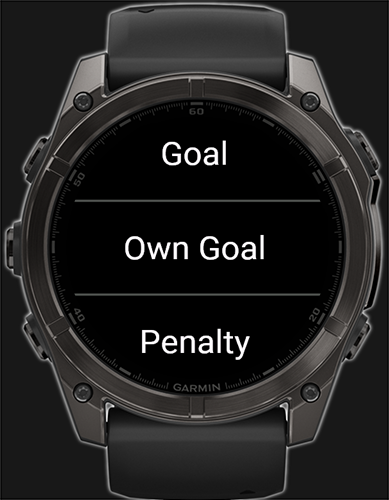
In the next menu, select whether it is a goal, an own goal, or a penalty kick
Main Screen (Timer)Notebook (Cards)
2. Pre-match Preparation
After launching the app, you are in the PRE-MATCH state. At this point, GPS is not yet recording, and the activity is not being saved.
You are in the Main Menu, where you will find:
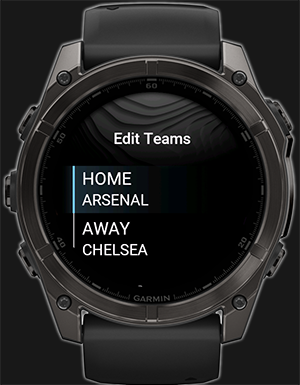
HOME - AWAY (Tap to edit): Opens a text keypad to enter team name abbreviations (e.g., ARS - MUC).
Half Length: Set half time legth
Settings: Access to data fields, appearance, and half length.
Rename Teams
Tip: While navigating the pre-match menu, you can see the current time of day in small print below the heading to ensure you don't miss the kickoff.
3. Match Start
All time management is handled via the main START button, which opens a context menu depending on the current phase of the match.
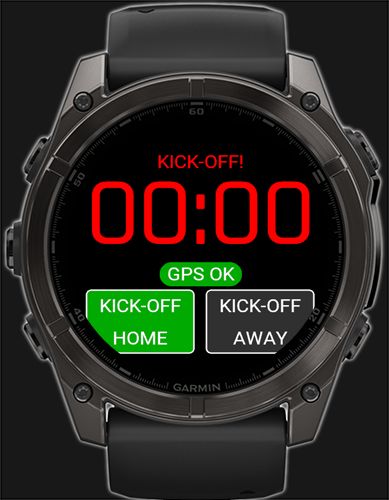
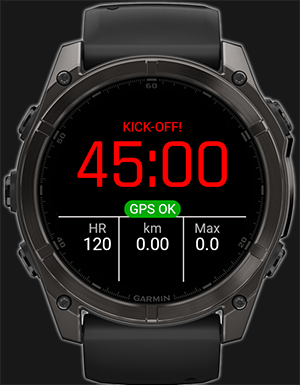
> START MATCH: Activates READY STATE, starts searching GPS, indicated by status message, when ready "GPS OK" is shown. "KICK-OFF" will also appear on the display, and the app waits for kickoff and a subsequent press of the START button.
Kickoff: press START. The watch will vibrate, and the timer will start.
Faulty Start: If you start the timer by mistake (and less than a full minute has passed), press START and select << Restart Kickoff. The timer will reset to zero, and you can start fresh.
4. Half-time Break
The app elegantly handles the separation of playing time and the break:
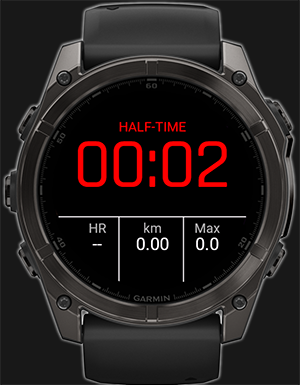
End of First Half: Press START and select || Start Break. Match time pauses, and a red stopwatch starts counting the break duration.
Starting the Second Half: Upon returning to the pitch, press START and select > START 2ND HALF. "KICK-OFF" appears with the linked time (e.g., 45:00). Press START at kickoff to resume the timer.
Half Time (Timer)Ready for the second Half
5. Match Suspension and Resumption
A match may be suspended for various reasons (weather, etc.). The app handles this situation professionally:
During active play, press START and select ! Suspend Match.
Select if "main" time should be freezed or not (depending on rules of the game)
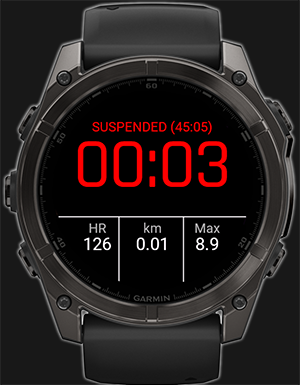
The display shows the SUSPENDED status, accompanied by the exact time of suspension in parentheses (e.g., SUSPENDED (75:30)).
A new large red stopwatch starts to measure the total duration of the suspension.
When play is ready to resume, press START and select > Resume Match. The app switches to the READY state (at 75:30); press START at the whistle to restart the game.
Suspended Match (Red Stopwatch)
6. Extra Time
If a match (e.g., in a cup competition) ends in a draw and the rules require extra time, the app is ready:
After the 2nd half ends, instead of finally ending the match, select > Start Extra Time from the menu. The display switches to 1ST EXTRA TIME mode.
Everything else works exactly like regular halves. You can whistle the end of 1st ET, select || Start Break (for switching sides), and then select > Start 2nd Extra Time.
7. Match End and Saving Activity
After whistling the final end of the match, select X End Match from the menu. You will then enter the "MATCH ENDED" state, where you have two choices:
Save: Saves the activity to the watch.
Discard: Deletes the activity (useful for "dry testing" at home).
But you won't lose your records! The app keeps the summary screens of goals scored and cards issued on the display until you actually close it. This allows you to transcribe the statistics from your watch into the official match report later.
Important Garmin Connect Info: The app intentionally records the match as a Trail Run. This ensures that the kilometers walked and run (often up to 10 km per match) are fully credited toward your personal fitness stats, VO2 Max, and training diary. Due to Garmin server limitations, the activity may be named generically upon upload. To have the exact match name in your diary, we recommend manually renaming it in the mobile app after synchronization.
8. Awarding of cards and Justifications
While the app doesn't entirely replace a physical notepad, Screen 2 displays issued yellow cards to keep them constantly in the referee's view. Team names correspond to the names set before the match.
Awarding a Card: Long-press on the left half of the screen (for Home) or the right half (for Away). A numeric keypad will appear.
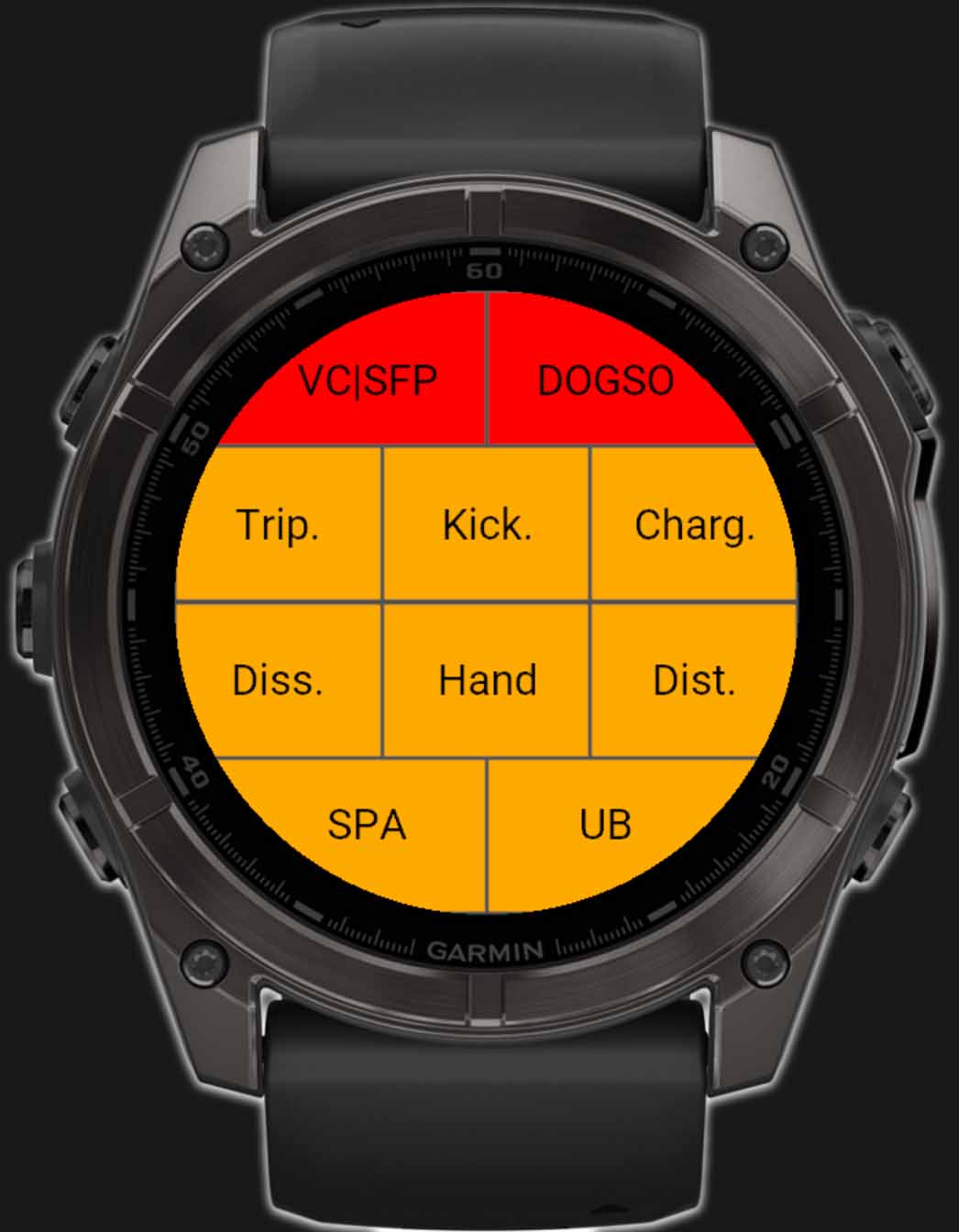
Enter the player's number and press OK or the START button. A color-coded menu will appear listing the most common reasons for a caution or sending-off according to the rules of soccer
Red Card / 2x Yellow: If you enter the same player number a second time, the system recognizes it as a second yellow, and the card turns red.
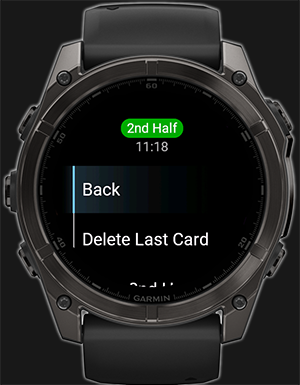
Correcting a Mistake: If you make an error, hold the middle-left button UP or press START and select Delete Last Card from the menu. This action works chronologically backwards.
Issued CardsCard ReasonsDelete Last Card
9. Goal scorers
The app lets you enter goal scorers throughout the entire match, freeing up your notepad for the truly important moments.
Record a goal: Long-press on the left half of the screen (for Home) or the right half (for Away). A numeric keypad will appear.
Enter the player's number and press OK or the START button. Then select goal type, Goal, Own Goal or Penalty Kick.
Correcting a Mistake: If you make an error, hold the middle-left button UP or press START and select Delete Last Record from the menu. This action works chronologically backwards.
Goal ScoredGoal Type Selection
10. Match summary screens
To make it easy to record cards issued and goals scored in the match report after the game, the app displays clear, organized pages with each item on a separate page, ensuring clarity and providing more space for display.
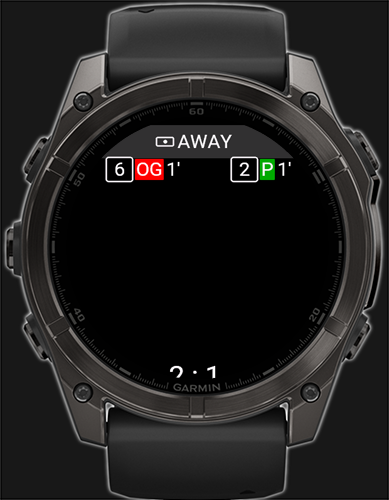
4 new screens appear after saving / discarding activity: Cards HOME, Cards AWAY, Goals HOME, Goals AWAY
After entering the relevant information into the Match Report, you can close the entire application or continue by selecting New Match.
Goal Scored SummaryCard Awarded Summary
11. App Settings
The Settings menu can be found on the main screen before starting the match.
Data Fields: Allows full personalization of the three fields at the bottom of the main timer screen.
You can individually set the Left, Center, and Right fields.
Options include: Current Heart Rate, Average Heart Rate, Total Distance, Lap Distance, Current Speed, Max Speed, Calories Burned, Battery Status, and Time of Day.
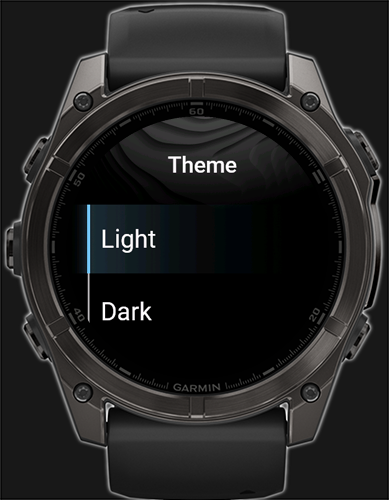
Appearance (Dark / Light): Toggles the entire app, including card backgrounds and menus. Light mode is often easier to read in direct sunlight.
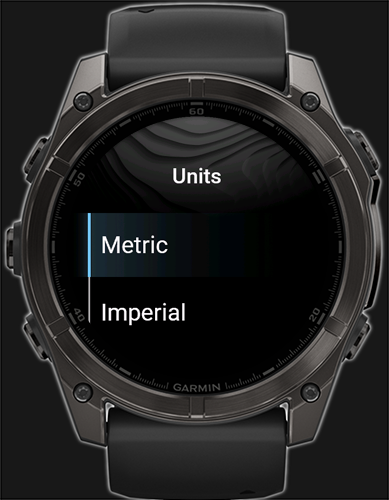
Units: Switch between imperial and metric units
Language:The app automatically switches to the watch's language. Support for Czech, English, German, French, Spanish, Dutch, Slovak and Italian
Theme SelectionUnits Selection
×
Contact Us
Have a question or an idea for improvement? Let us know!



 English
 Français
 Česky
Česky
 Slovenčina
 Deutsch
 עברית
עברית